
How to edit text in an image in Canva.
And what to use when Grab Text can’t match the font.
Canva’s Grab Text lifts the words out of a photo into an editable text box, set in the closest font in Canva’s library. That suits clean, straight text in common fonts. For custom lettering, text at an angle or in a non-Latin script, or a free option, EditText rewrites the words inside the image itself in the original style. Try it below.
No credit card required to start. Sign in for a free edit.
By clicking Generate, you confirm you own or are licensed to edit this image and that the edit is not intended to deceive a third party — including fake refund or transaction proofs and email or chat screenshots altered to falsify sender, content, or timestamp.
We do not process IDs, passports, certificates, bank records, receipts, payment proofs or chat screenshots. See our Acceptable Use Policy.
To edit text in an image in Canva, select the photo, choose Edit, open Tools > See all, pick Grab Text, select the words and click Grab. Canva removes them from the photo and adds an editable text box in the closest font in its library. Grab Text needs a paid plan such as Canva Pro and doesn’t handle rotated, arched or non-Latin text. When the original lettering has to stay, or you want a free option, EditText changes the words inside the image instead.
Edit text in an image in Canva, step by step
First check what kind of text it is. If you can double-click the words and get a text cursor, they are a Canva text box: type your change, or use File > Find and replace text (Ctrl+F or Cmd+F) to change every copy in the design at once. If clicking selects the whole picture, the words are part of an image, and you need Grab Text:
- Select the photo in your design.
- On the editor toolbar, choose Edit.
- Under Tools, click See all, then scroll down and pick Grab Text.
- Select the text you want, or drag across several lines, and click Grab.
- Edit the new text box like any other: type, then change the font, size and colour to match.
To go back, undo, or click Grab Text again to restore the original image. In the iPhone app you can grab all the text but can’t yet pick specific words.
What Grab Text can’t do, in Canva’s own words
These limits come from Canva’s help centre and feature page. If your image hits one of them, Grab Text is the wrong tool for it.
- ·It needs a paid plan. Grab Text is part of Magic Studio on Canva’s eligible plans such as Pro, and isn’t available in Canva Docs, Video or in China.
- ·The font is Canva’s closest match. It keeps the original font only if that font is in Canva’s library. Brand typefaces, paid display fonts and hand lettering come back in something similar.
- ·Some text isn’t supported. Rotated or arched text, languages that don’t use the Latin alphabet, multi-page files, and bold, italic or underlined formatting are listed as unsupported. Text in a photo taken at an angle is read less well.
- ·It can leave traces. Canva notes that bits of the old text may remain, to be cleaned up with Magic Eraser, and that it sometimes invents text from patterns or line drawings.
EditText works the other way round: you type the words as they appear and what they should say, and the replacement is drawn into the image in the lettering it samples from the surrounding pixels, so there is no font to find. processing time varies per change. It will not design anything for you, so for new layouts Canva is still the better tool.
Three jobs where a dedicated editor beats Canva
Canva is great when you're designing from a template. These are the everyday situations where changing the text on the finished image is quicker than going back into the editor.
 Before
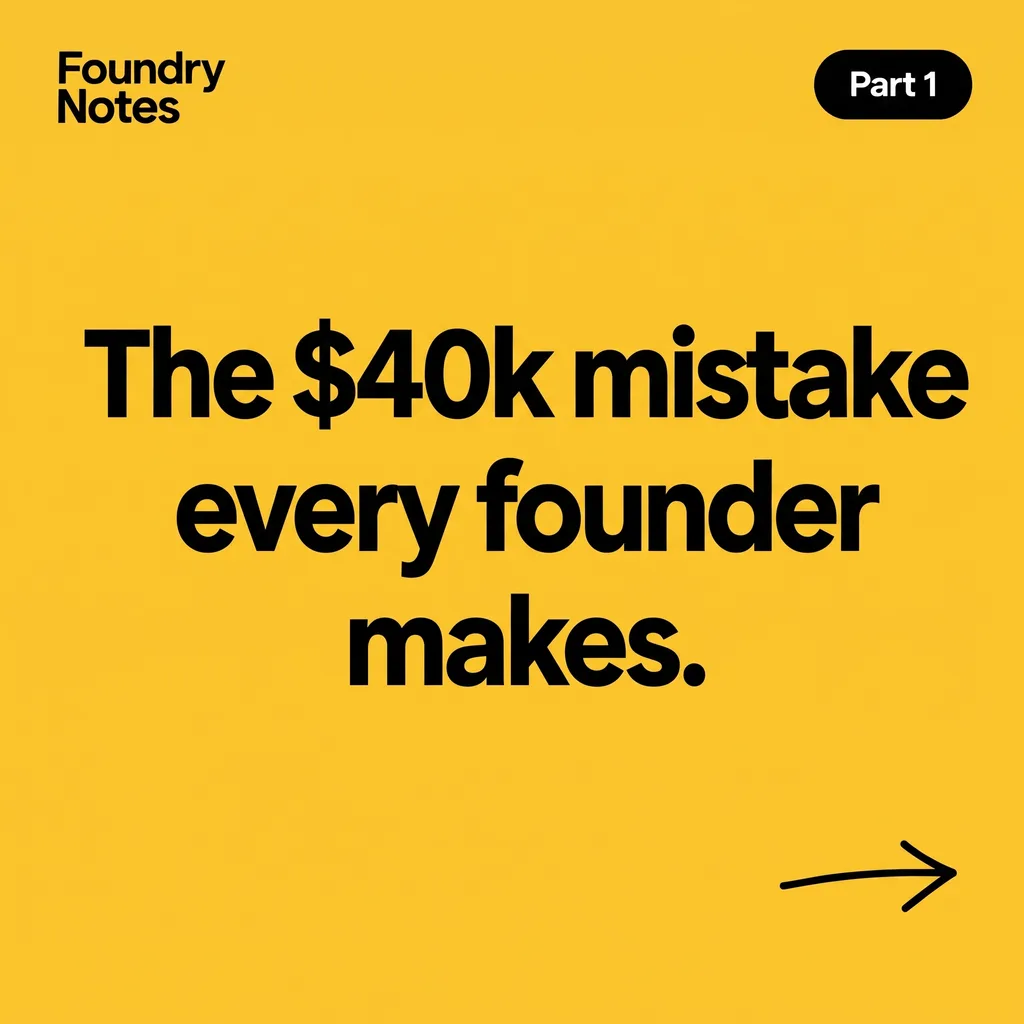 After
Refreshing a finished Instagram post when the Canva file is locked
Your Instagram carousel was designed in Canva six months ago by a contractor whose account is now inactive, so the original design is out of reach. You want to update the headline on the cover slide. Canva flow: rebuild the slide in your own account, then find and match the font and the brand colour. EditText flow: download the published cover from Instagram, upload it, type the old and new headline, download, using AI and without a Canva login.
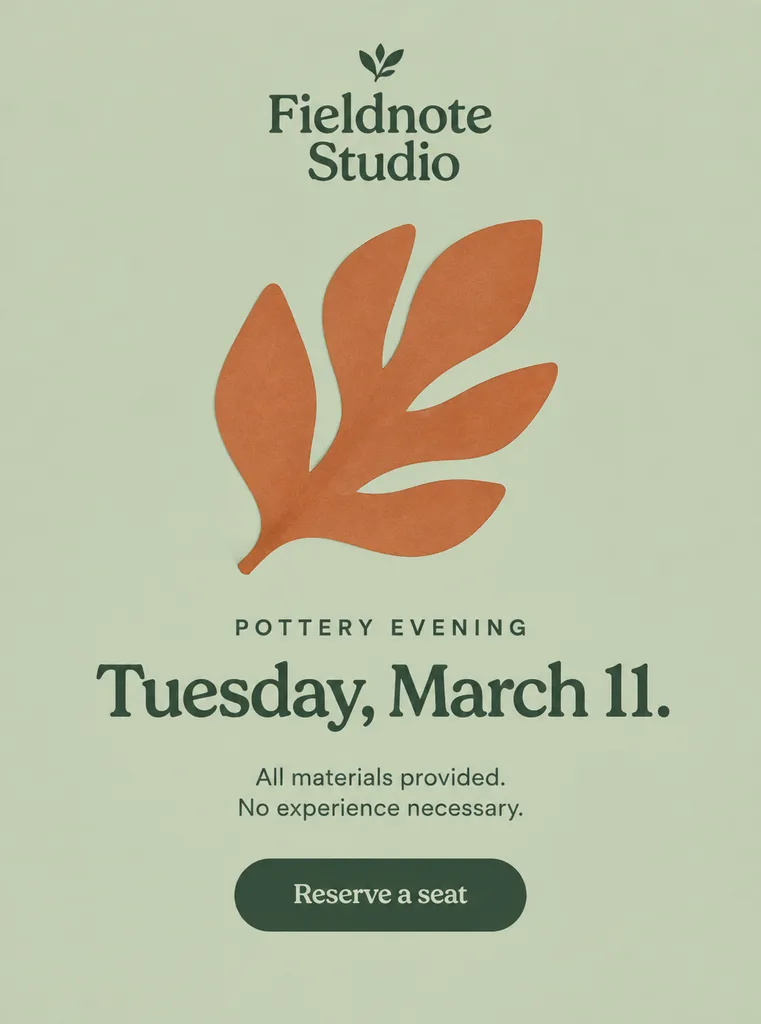 Before
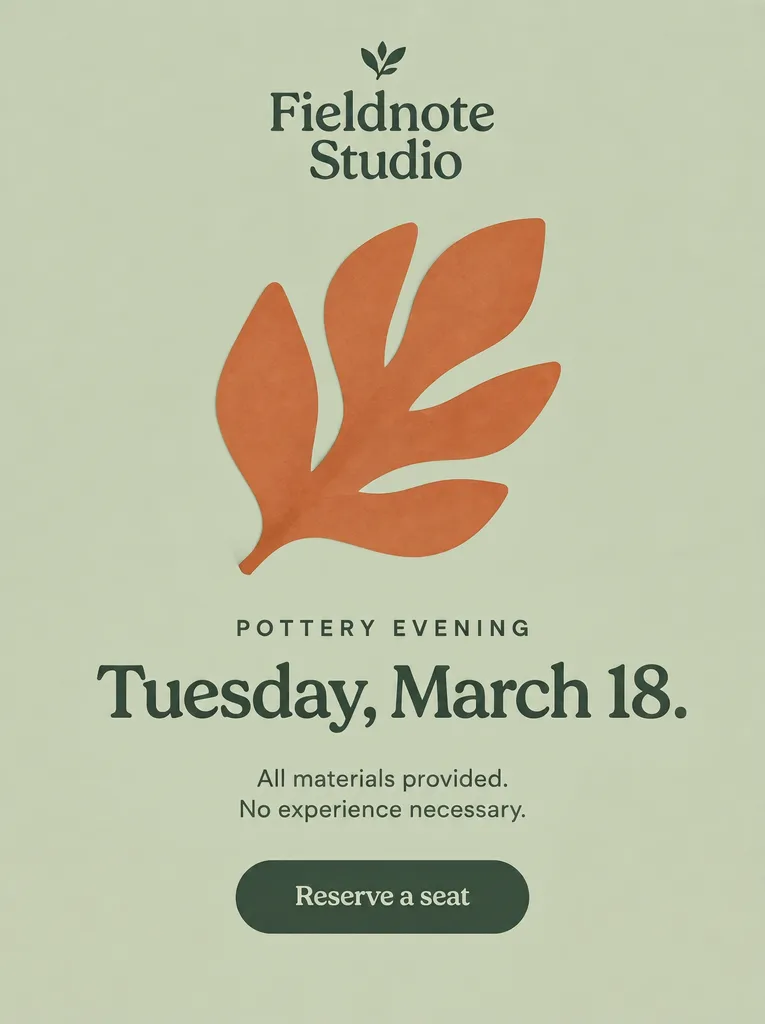 After
A marketer changing one date on a finished promo image
A solo marketer needs to swap a date on next week's webinar promo image. Canva flow: open the design, assuming they can still find it and the template lets them edit that field; purchased templates sometimes lock it, and the font has to be available on their plan. EditText flow: upload the rendered promo, type the old date and the new one, click Generate. No editor to learn and no subscription for a one-word change.
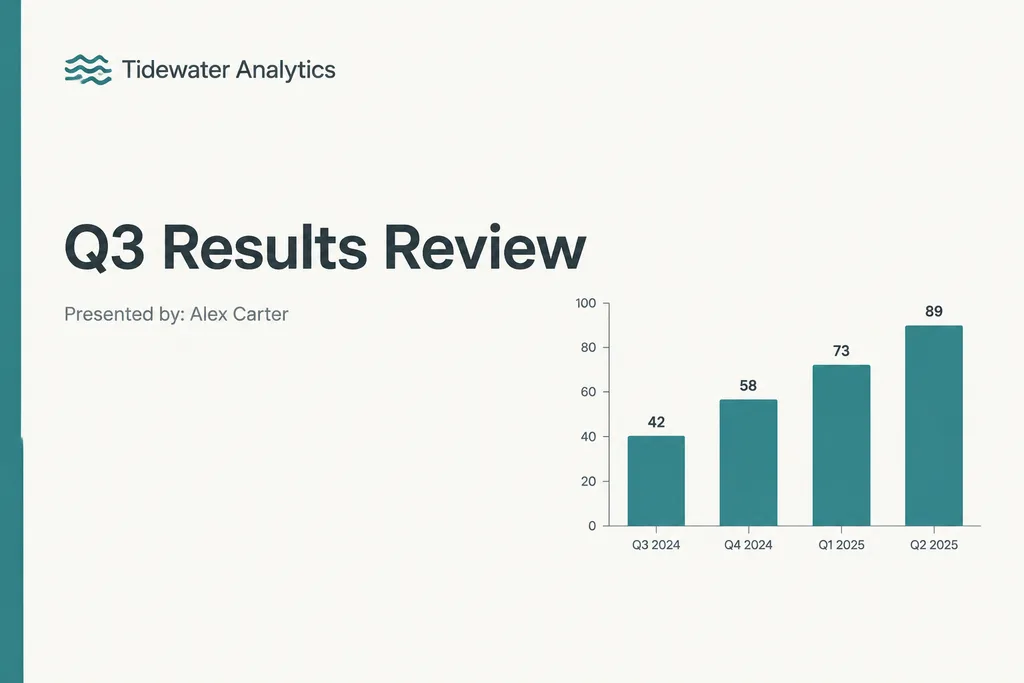 Before
 After
A slide that was never made in Canva
Your team's assets come from Figma, Photoshop, Etsy templates and photographs of printed material, so there is no Canva source file to open. Grab Text can lift the words into a text box, but it sets them in the closest font in Canva's library, so display faces and hand lettering rarely survive, and rebuilding the slide takes longer still. EditText works on the rendered image whatever made it: the replacement is drawn in the lettering sampled from the pixels.
Canva Grab Text vs EditText
| Feature | EditText | Canva |
|---|---|---|
| Text inside a photo or image | Rewritten in place in the image | Grab Text lifts it into an editable text box |
| Font | Sampled from the letters in the image | Original only if it's in Canva's library, otherwise the closest |
| Text at an angle or in a non-Latin script | Handled, including perspective and non-Latin scripts | Rotated, arched and non-Latin text not supported |
| Subscription required | No: $14.90 once for 40 edits | Grab Text is on paid plans such as Pro |
| Text that is already a Canva text box | Not needed: edit it in Canva | Double-click, or Find and replace text |
| Designing from scratch | Not what it's for | Templates, brand kit, drag and drop |
| On a phone | Works in the mobile browser | Canva app; on iOS Grab Text can't select specific words yet |
| Output resolution | 1K on the free edit, 2K with a credit pack | Set by your design and plan |
Use EditText instead of Grab Text when…
- ·The lettering is a brand font, a paid display face, hand lettering or part of a logo, so “closest match” won’t do.
- ·The text is rotated, on a sign photographed at an angle, or in a non-Latin script.
- ·The image wasn’t designed in Canva, or the Canva file is locked behind someone else’s account.
- ·You don’t pay for Canva Pro and only need to change text now and then.
Stay in Canva when…
- ·The words are a Canva text box: double-click and type.
- ·You already have Pro and the text is straight, Latin and in a common font, which is what Grab Text handles well.
- ·You’re designing from scratch or changing the layout, not just the words.
- ·Your team works in Canva with shared brand kits, approvals and scheduling.
The honest take
If you pay for Canva Pro and the text in your picture is plain, straight and in a common font, Grab Text is the quickest route and you don’t need us. EditText is for the cases Grab Text leaves behind: lettering that has to stay exactly as it was, text Canva can’t read, images that were never Canva designs, and people who don’t want a subscription for an occasional change. Many teams use both: Canva to design, EditText to change the copy on the finished image.
The same comparison against the other two editors people arrive from: versus Photoshop when the original PSD is gone, and versus Photopea when the blocker is a paid brand typeface you cannot install.
Frequently asked questions
How do I edit text in an image in Canva?+
Select the photo in your design, choose Edit on the toolbar, open Tools and click See all, then pick Grab Text at the bottom. Select the words and click Grab: Canva removes them from the photo and adds an editable text box in their place. Type your change and adjust the font, size and colour. If the words are already a Canva text box rather than part of a photo, just double-click the box and type, or use File > Find and replace text.
How do I edit text in an image in Canva for free?+
Grab Text is only on Canva's paid plans, such as Canva Pro. On the free plan you can still edit text that is a Canva text box, and for words inside a photo you can cover them with a rectangle in the background colour and type a new text box on top, which only works on flat backgrounds and does not remove the original. To change the words inside the image itself without a subscription, edit the image first in a tool such as EditText, whose first edit is free, and upload the result to Canva.
Is there a free alternative to Canva Grab Text?+
Yes, depending on what you need. To change the words and keep the picture, EditText rewrites the text inside the image in its original lettering; the first edit is free and has no watermark. To do it by hand, Photopea in a browser lets you clone out the old text and type new text, if you can find the font. If you only need to copy the words out, Google Lens or any OCR tool is enough.
Will Canva's Grab Text keep the original font?+
Only if that font is in Canva's library. Canva says that when the exact font isn't there, it picks the closest one, and its help centre notes that the match doesn't always work. Brand typefaces, paid display fonts, hand lettering and logo type usually end up in a different font. EditText avoids the font question by drawing the replacement from the letters already in the image.
Why doesn't Grab Text work on my image?+
Canva's help centre lists the cases it does not support: rotated or arched text, languages that don't use the Latin alphabet, files with more than one page, and bold, italic or underlined formatting. It works best on straight, flat text, so a photo taken at an angle may not be read. It can also leave traces of the old text, which Canva suggests cleaning up with Magic Eraser, and it sometimes invents text from patterns. It is not available in Canva Docs or Video.
Can EditText edit text on images downloaded from Canva?+
Yes. Once you've exported a finished Canva design as PNG or JPEG, EditText can change the text on that file. A common workflow is to design in Canva, export the finished image, then make copy changes such as headline variants without reopening the editor.
Canva or EditText: which is cheaper for changing text now and then?+
For occasional text changes, EditText usually is. Canva's Grab Text comes with a paid plan billed monthly or yearly, at a price that varies by country. EditText has no subscription: $14.90 buys 40 edits once, and credits don't expire. If you already pay for Canva Pro for design work, Grab Text costs you nothing extra, and the choice comes down to whether its font match is good enough for your image.
Is EditText a Canva alternative for text editing?+
For changing the text on an image that already exists, yes. It does not replace Canva for designing a poster, social post or presentation from a template; it has no template library or brand kit. It does one job: upload a finished image, type the old and new text, and download the image with the words changed in their original style, whether or not the image was made in Canva.
“How do I edit text in an image in Canva, and what can I use when Grab Text can't match the font?”
When Grab Text swaps your brand typeface for the closest library font: how the original lettering is kept without the font file.
The free by-hand route: clone out the old words and retype them, and when that beats AI.
No Canva Pro? What the free edit covers, with no watermark and no subscription.
Further reading
- Canva Help CenterSelecting and changing the text in your photos with Grab Text↗
Canva's own steps for Grab Text and its list of limitations: rotated, arched and non-Latin text, multi-page files, formatting, leftover traces. The source for the limits on this page.
- CanvaEdit text in your image with Grab Text↗
Canva's feature page, including its answer on fonts: the original is kept only if it is in Canva's library, otherwise the closest font is used.
- Canva HelpCanva plans and features↗
Which features need a paid Canva plan. Useful for weighing a subscription against a one-time pack if text changes are all you need.