
AI screenshot editor.
Edit text in any screenshot — iOS, Android, web.
No credit card required to start. Sign in for a free edit.
By clicking Generate, you confirm you own or are licensed to edit this image and that the edit is not intended to deceive a third party — including fake refund or transaction proofs and email or chat screenshots altered to falsify sender, content, or timestamp.
We do not process IDs, passports, certificates, bank records, receipts, payment proofs or chat screenshots. See our Acceptable Use Policy.
An AI screenshot editor like EditText lets you edit text in screenshot captures from iOS, Android or web apps without re-running the simulator or re-taking the capture. Status bar, dynamic island, system font and chrome all are intended to remain visually consistent — useful for App Store localization and documentation refreshes where the screenshot must look unedited. Compare the result with the original before publishing; AI can change surrounding details.
Three real scenarios to edit text in screenshot.
Each one is a workflow product teams run weekly — fast in EditText, painful in Photoshop or Figma.
 Before
 After
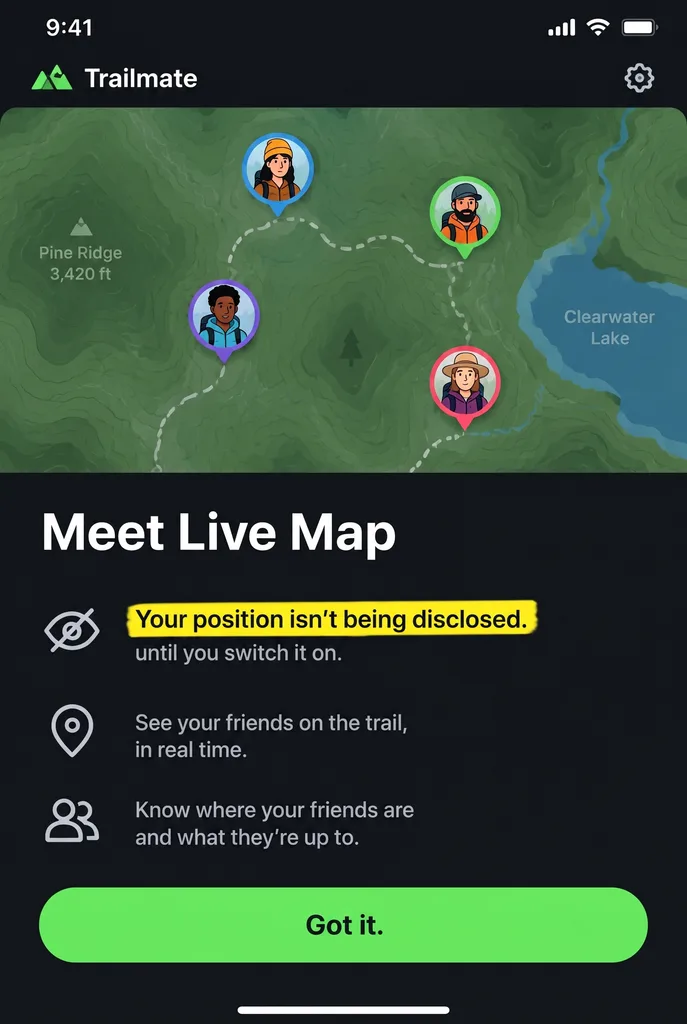
Edit text in screenshot after a copy review — reword the dialog, keep the UI
The feature-announcement screenshot is already exported and shared — then legal or comms rewrites the key sentence. Re-staging the app to that exact dialog state means test accounts, feature flags and luck. Instead, edit the highlighted line in the screenshot you already have: the map background, avatars, buttons and even the highlight marker are intended to remain visually consistent — only the sentence changes. Compare the result with the original before publishing; AI can change surrounding details.
 Before
 After
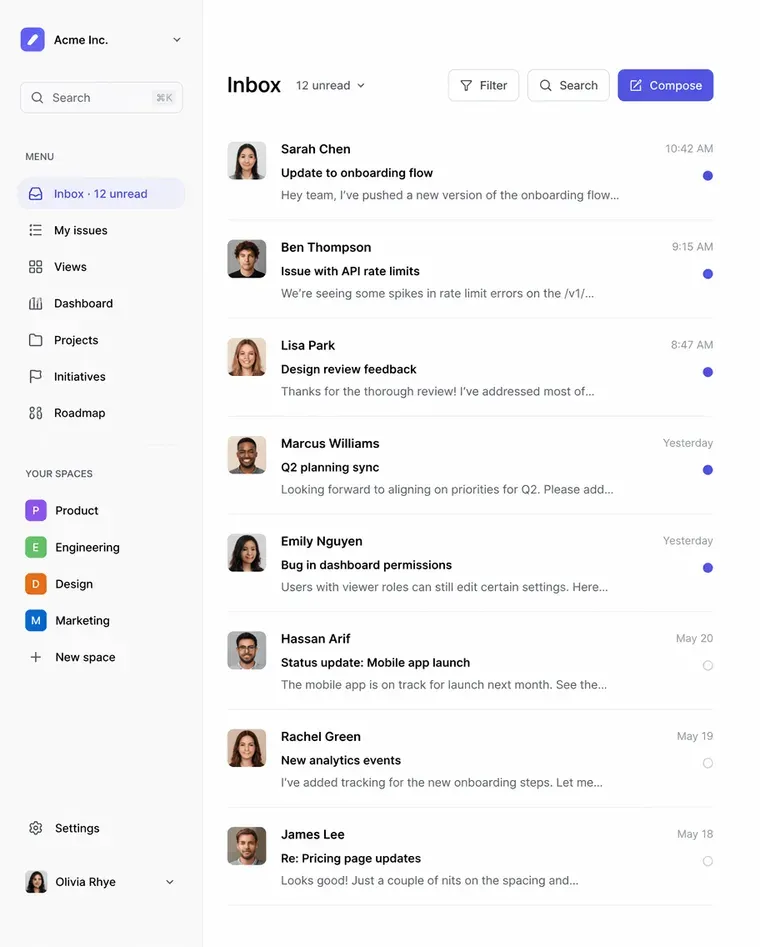
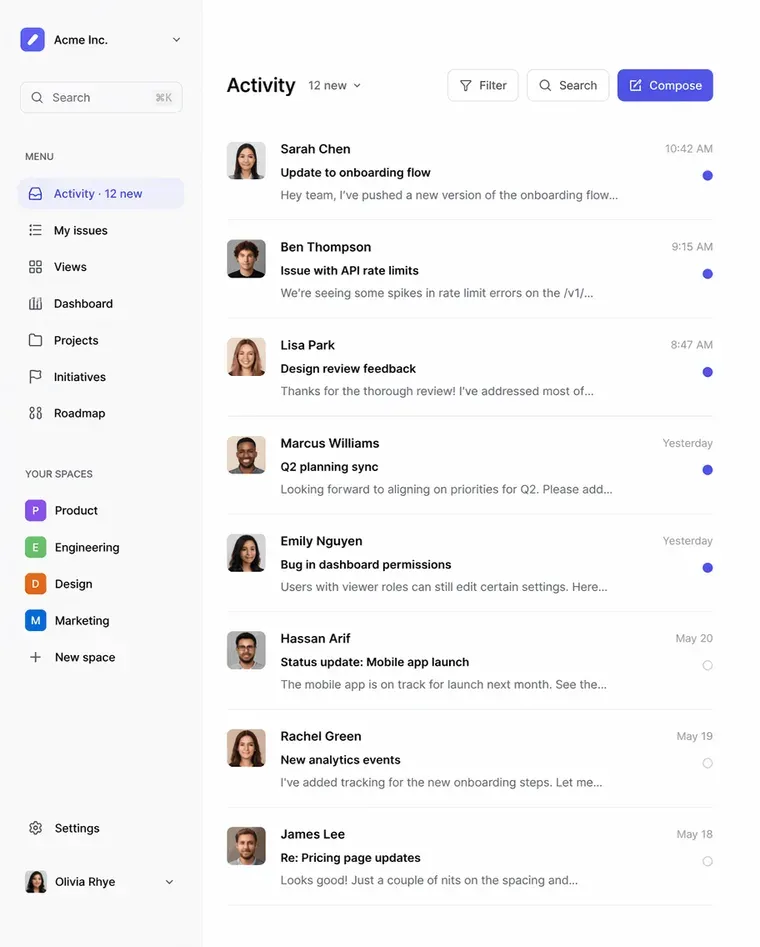
Edit text in screenshot when a feature gets renamed — patch the docs in place
Your product team renamed «Inbox» to «Activity» last sprint. Every help-center article showing the old label is now stale, but recapturing all those tutorial screenshots takes a day. Edit each existing screenshot's nav label using AI, re-upload to the help center — done before lunch, no engineering time required.
 Before
 After
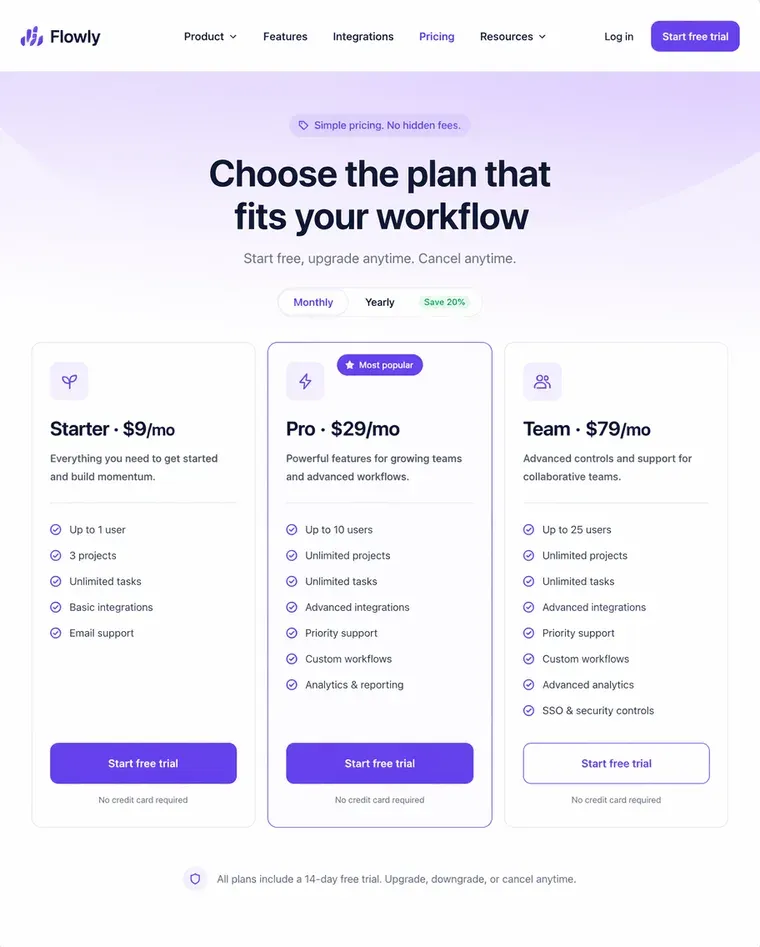
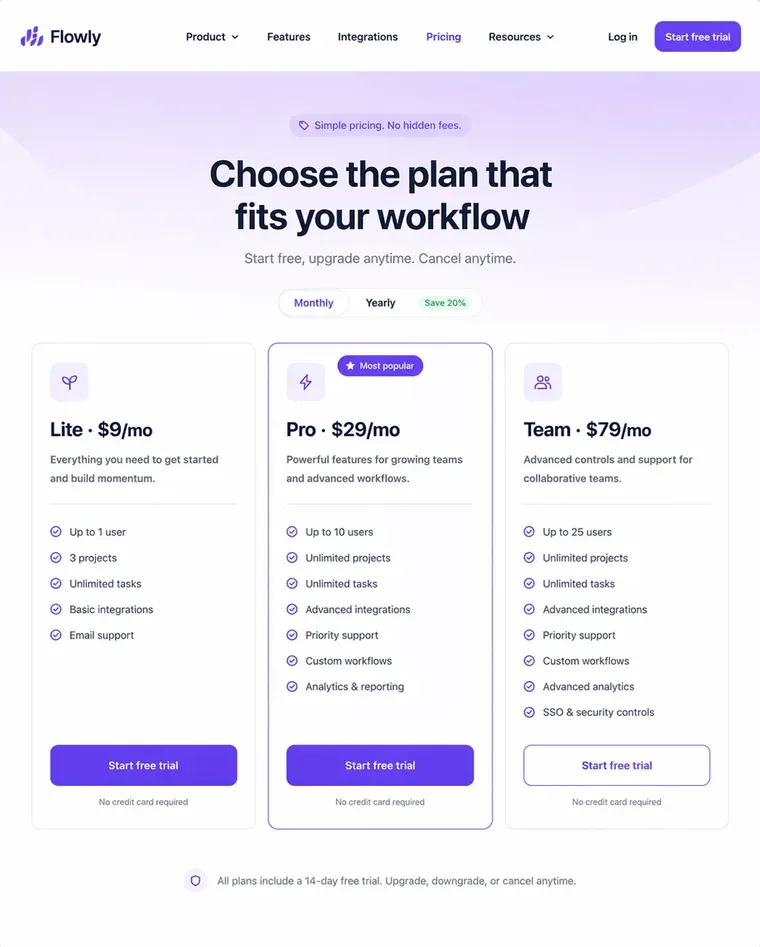
Edit text in screenshot for marketing pricing — A/B test tier names without a designer
Marketing wants to test «Starter / Pro / Studio» against «Lite / Plus / Studio» on the pricing page hero. Same UI screenshot, just three different tier labels. Edit each variant in place; the marketing site swap takes 30 seconds; no Figma round-trip, no designer ping. The screenshot's gradient, button shape and typography stay identical so the test cleanly measures the wording effect.
What does it mean to edit text in screenshot?
To edit text in screenshot is to replace any text rendered inside a screen capture — an iOS notification, an Android app label, a web-app button, a chat preview, a confirmation dialog — without re-running the underlying app or rebuilding the mockup in Figma. The system fonts (SF Pro on iOS, Roboto on Android, the web-app's CSS font stack), the chrome (status bar, navigation, app shell), the colour palette and the layout all are intended to remain visually consistent; only the words change. This is the workflow product marketers, app studios and documentation writers use to iterate on copy after the screenshot was captured, without scheduling another simulator run. A screenshot is just one surface where you can edit text in image form — the same engine handles posters, product photos and signs too.
Sometimes the screenshot is right and a detail in it just shouldn’t be shared, like a customer’s email in a bug report or a phone number in a chat. Then blurring the text in the screenshot is quicker than replacing it: it runs in your browser, nothing is uploaded, and a solid black box is there for passwords and account numbers.
Shipping the same screenshot into other markets is the localisation case: translating App Store screenshots keeps Apple’s required dimensions while the copy changes language, and translating product images does the same for listing graphics with the text baked in. And if your current workflow for these jobs is a manual browser editor, Photopea vs EditText maps out honestly where each approach wins.
Where editing screenshot text saves real time
- ·App Store / Play Store localization. Apple's policy: screenshots must match the App Store locale they're uploaded to. With 10 supported locales × 5 screenshot positions = 50 variants per release. Editing the existing EN shots in-place is 5–10× faster than re-running the simulator in each language.
- ·Documentation that was published before the rename. When your product renames a feature or button, every blog post and help-center article showing the old label becomes stale. Edit the screenshots in place rather than recapture the whole tutorial flow.
- ·Marketing variants on the same UI. A/B test 3 different headline wordings or pricing-tier names using the same UI screenshot — the rest of the visual stays identical so the test only varies the copy.
- ·Status-bar / system clock standardization. Apple recommends a 9:41 status bar across all marketing screenshots. Standardize old captures with mismatched times without recapturing.
FAQ — edit text in screenshot
How do I edit text in a screenshot online?+
Upload the screenshot to EditText, type the existing text exactly as it appears, type the replacement, and download a 2K result. The AI samples the iOS / Android / web-app font from the surrounding pixels and re-renders the new text in the same typography — no font ID needed, no Figma round-trip required. Processing time varies by image and provider load.
Can I edit text in an iPhone screenshot without re-taking it?+
Yes. The editor handles iOS native fonts (SF Pro, New York), iOS-style status bars, the dynamic-island carrier indicator, and any third-party app's typography. Open edittext.net in Safari, upload from your camera roll, type old/new text, download. The result drops back into Photos at 2K with the original screenshot dimensions and pixel density preserved.
Will the AI mess up the iOS / Android status bar when I edit text in a screenshot?+
The aim is to match the surrounding UI, but an AI generation can change details outside the words you entered. Compare the status bar, navigation, icons, nearby labels and colours with the original. Check the final image against the current store requirements before submitting it; exact pixel preservation is not guaranteed.
How do I edit App Store screenshots for a new release without rebuilding the mockup?+
Edit the existing screenshot directly. Marketing teams typically maintain 5-10 localized screenshot variants per app per language. When the in-app copy changes (new feature label, new CTA wording, new pricing tier), edit the existing rendered screenshot instead of re-running the mockup pipeline through Figma → Xcode → simulator → re-screenshot. Saves 30-60 minutes per locale per change.
Can I edit text in a web-app screenshot — Notion, Slack, Linear, GitHub?+
Yes. The editor doesn't care which web app the screenshot is from. Common use cases: documentation site updates (changing feature names without re-capturing screenshots), pricing-page snapshots (when a tier renames), tutorial blog posts (correcting typos in already-published screenshots).
What file formats and resolutions are supported?+
PNG, JPEG and WebP up to 10 MB. Output renders at 2K (~2048px on the long edge). For Retina screenshots (1242×2688 iPhone Pro Max etc.) the output preserves the long-edge aspect ratio. PNG is recommended for screenshots that include UI elements with sharp edges (icons, buttons) since JPEG recompression can soften them.
How to edit screenshot text with AI?+
Upload the screenshot to EditText, type the on-screen text exactly as it appears (a navigation label, a button caption, a feature name, a price), type the replacement, and click Generate. The AI samples the system font (San Francisco, Roboto, Inter), any backdrop blur or vibrancy, and the surrounding chrome from the pixels around the targeted text — then re-renders the replacement in the same UI typography. Processing time varies by image and provider load. The status bar, dynamic island, navigation bar and untouched UI elements all are intended to remain visually consistent, which is critical for App Store screenshot submission and for documentation refreshes that should look unedited. Compare the result with the original before publishing; AI can change surrounding details.
How to change text on a screenshot?+
There are two ways: cover the old words and type new ones in an image editor, or have an AI tool redraw them in the screenshot's own font. On a flat screenshot with a solid background, a free editor like Photopea is enough: paint the background colour over the old text, then type the new text in the system font (San Francisco on iPhone, Roboto on Android, Segoe UI on Windows) at the same size. When the text sits on a gradient, a photo or a blurred backdrop, or you can't tell which font it is, upload the screenshot to EditText, type the text that's there and the text you want, and download the result. Either way, compare the edit against untouched text in the same screenshot at 100% zoom. Changing amounts, names or times on payment, chat or booking screenshots is not allowed under our Acceptable Use Policy.
How do I edit words on a screenshot so it doesn't look edited?+
Match the three things the eye checks first: font weight, baseline and the soft edges of the letters. Screenshots are rendered by the operating system, so text typed in an image editor often looks slightly too sharp or too heavy next to the original. Keep the new wording close to the old length so line breaks don't move, keep the screenshot as PNG so JPEG compression doesn't add halos, and after an AI edit check the other small text too, because the model redraws the image and can occasionally alter a nearby label. If a word still looks off, run the edit again on the original screenshot rather than on the edited copy, so errors don't stack.
why does text look different when i edit a png image?+
Text can look different when editing a PNG due to several factors, including subpixel rendering and the availability of system fonts. When you modify text in an image, the rendering might not replicate the original due to differences in how text is displayed on different devices and applications. Subpixel rendering is a technique that uses the individual pixels of an LCD screen to increase the apparent resolution of the text. However, this means that any change or movement of the text can lead to differences in appearance, especially when viewed at different resolutions or zoom levels. Additionally, if your editing tool uses a different font library than the one used to create the original text, discrepancies can occur. For instance, Adobe Fonts and Google Fonts have different sets of available fonts, which can lead to unexpected outcomes when the exact match isn't available. Using tools like EditText, which are specifically designed to match the original font closely, can mitigate these differences. It analyzes the image and selects the closest possible match in terms of weight, size, and style, ensuring a more seamless integration. To maintain color accuracy and text fidelity, it's important to save the edited image in a format that supports alpha channel preservation, such as PNG.
how can i fix a typo in an image without starting over?+
To fix a typo in an image without starting over, use tools like EditText or Adobe Photoshop's Generative Fill for targeted text corrections. The tool is especially useful as it employs bounding-box-conditioned generation to focus only on the text area, preserving the rest of the image's content untouched. When using the tool, simply upload your image (JPG, PNG, or WebP) and specify the text region you wish to edit. The tool will automatically detect the font characteristics such as size, color, and weight, allowing you to replace the misspelled word with the correct one while maintaining the original style. This ensures the edit is consistent with the surrounding design elements. Adobe Photoshop's Generative Fill can also be used to paint over the typo and reinsert the correct text. However, this requires manually selecting and matching the original font, which can be time-consuming. For best results, save your edited image as a PNG to maintain all details, especially if you plan further adjustments. PNG files preserve the alpha channel, avoiding the artifacts common in JPEGs after multiple edits. This is crucial for maintaining image quality over several editing iterations.
why does text color change when editing an image?+
Text color changes when editing an image due to CMYK to RGB color shift, especially if the image was designed for print but is being edited on a digital platform. This happens because CMYK (Cyan, Magenta, Yellow, Black) is a color model used in printing, while RGB (Red, Green, Blue) is used for screens. When an image transitions from a printed format to a digital one, the color values have to be recalculated, often resulting in visible shifts. If you experience this issue, using a tool that recognizes these differences, like EditText, can be beneficial. It processes images in their digital form, ensuring the RGB values are maintained during edits. Other tools such as Adobe Photoshop also offer color profile management, allowing you to manually adjust and correct colors during your editing process to better match the original appearance. However, such precision might require more time and expertise. To minimize color shifts, always check the color profile settings before starting the edit. For consistent results, work within the RGB color space if the final output is intended for digital use. This practice ensures that the colors you see during editing will closely match the final displayed image.
how do i edit text in a png image for free?+
You can edit text in a PNG image for free using online tools that automatically maintain the original font and style. EditText is one such tool that works efficiently without requiring a download or subscription. To start, you simply upload your PNG image to EditText, which supports files up to 10 MB. It uses generative inpainting to replace the words while preserving the background seamlessly. Unlike manually editing in software like Photoshop, which can be more complex and require font matching, the tool uses the surrounding area to intelligently guess the text style. Another option is Pixlr, a free online photo editor that also allows text editing within images, though it may require more manual input to achieve the same font and style consistency. Pixlr offers a range of tools similar to traditional desktop software and supports layers and advanced editing. After editing, ensure to save your work in the PNG format to maintain transparency, which is a notable feature of PNG files thanks to their alpha channel preservation. This ensures no loss of quality or unwanted background when the edited image is used elsewhere.
how do i edit text in a jpg image online for free?+
Editing text in a JPG image online for free is possible using tools like EditText and Photopea, which allow you to modify text without downloading any software. The tool offers an easy-to-use web interface where you can upload your JPG file, and it automatically detects and replaces text while preserving the original font, color, size, and background. This tool uses generative inpainting, a process that fills in text areas by sampling the surrounding pixels and ensuring that the edited text blends seamlessly with the existing image structure. The result is a high-quality edit without obvious signs of alteration. Photopea, on the other hand, simulates many of Photoshop’s features online, allowing for more manual control but requiring a bit more design skill to match font styles manually. The tool is more automated and outputs 2K results within about 30 to 60 seconds, making it ideal if you need quick and consistent edits. Both tools are free, but Photopea may require you to deal with ads unless you opt for a paid version. If you intend to further edit the image, consider saving it in PNG format to avoid lossy JPEG recompression artifacts.
what's the best free image text editor?+
The best free image text editor depends on your specific needs, with EditText being an excellent choice for quick text edits while preserving original styles. This tool specializes in replacing text in images without altering other elements, making it ideal for those needing precise text updates. The tool works by sampling surrounding text attributes and can edit images up to 10 MB in formats such as JPG, PNG, and WebP. It provides results at 2K resolution within approximately 30 to 60 seconds. For broader image editing capabilities, consider using Canva, which includes a range of design tools and templates but might require manual adjustments to ensure text consistency with the original. Both the tool and Canva operate in-browser, negating the need for software installation and ensuring accessibility from any device, whether you're on a Mac, Windows, or even mobile platforms. Canva offers more extensive design features, which could be beneficial if you're working on complex projects or presentations. For those focused on text editing precision, the tool's automatic text style sampling provides a significant advantage in ensuring style consistency, making it a strong candidate as a specialized tool.
what's better for editing text in an image, canva or photopea?+
When deciding whether Canva or Photopea is better for editing text in an image, it depends on the complexity of the task and the style preservation required. Canva is known for its ease of use and template-based design, offering a straightforward way to add and edit text, though it might not perfectly match existing font styles on images unless the exact font is available in their library. Photopea, on the other hand, is a more advanced tool that replicates many features of Adobe Photoshop and supports complicated edits like maintaining the original font style, size, and color more precisely, provided you know the exact settings to replicate. While Canva excels in creative design and quick edits, Photopea provides greater control over manual adjustments and intricate style matching, which is essential for graphic designers familiar with layer-based editing. For quick, template-driven tasks or design creation from scratch, Canva is a strong choice. If maintaining the integrity of existing text styles within an image is crucial, Photopea may offer better fidelity. Users looking for a balance between these two might consider EditText, which simplifies maintaining original text styles in place using AI-based detection without needing advanced editing skills.
how can i change text on a jpeg without photoshop?+
You can change text on a JPEG without Photoshop by using online tools like EditText or Canva. The tool allows you to replace text while keeping the original font, color, and style intact. It handles JPEGs up to 10 MB and returns results in a crisp 2K resolution within about 30 to 60 seconds. This makes it ideal for quick edits without the complexities of software like Photoshop. Canva, on the other hand, is a versatile online graphic design tool that includes text editing features. Though not as specifically focused on maintaining original text styles, Canva allows you to overlay new text easily. It's particularly useful for creating designs from scratch or when you are not concerned with matching the existing text exactly. Both tools are web-based, which means you can perform your edits from any device with internet access. If you frequently work with images, it's advisable to keep your files in formats like PNG or high-quality JPEG to prevent degradation from repeated edits.
“How do I edit text in an iPhone screenshot without re-taking it or re-running the simulator?”
Localizing UI screenshots is translation work — swap the on-screen copy into another language while the system font, status bar and layout are intended to remain visually consistent.
Same engine, marketed for the "keep the original typography" use case across any image type.
Screenshots are photos too — the same engine swaps any visible text on any uploaded image at no extra cost. Useful for content other than app captures (product shots, signs, packaging).
Further reading
- Apple Human Interface GuidelinesApp Store screenshots — Human Interface Guidelines↗
Apple's official screenshot specifications. Check required device dimensions and ensure the screenshot truthfully reflects your app. Review and, if necessary, resize the final image before submission.
- Material Design 3Typography — Material Design↗
Google's typography system for Android. When editing an Android screenshot you want the new text to land in Roboto / system weight — the AI samples the system font from the pixels around the original text so the edit blends with the rest of the UI.
- VisilyHow to edit text in a screenshot — workflow comparison↗
Visily's overview of editor patterns for screenshot text — from manual paint-out to AI in-place replacement. Useful contrast against the EditText flow when deciding whether to re-render the entire UI or just swap one label.