
Fix AI Text or Remove a Word: Two Different Editing Tasks
Illustrative correction and removal examples show how to supply a known spelling, reconstruct a background and review an imperfect result.
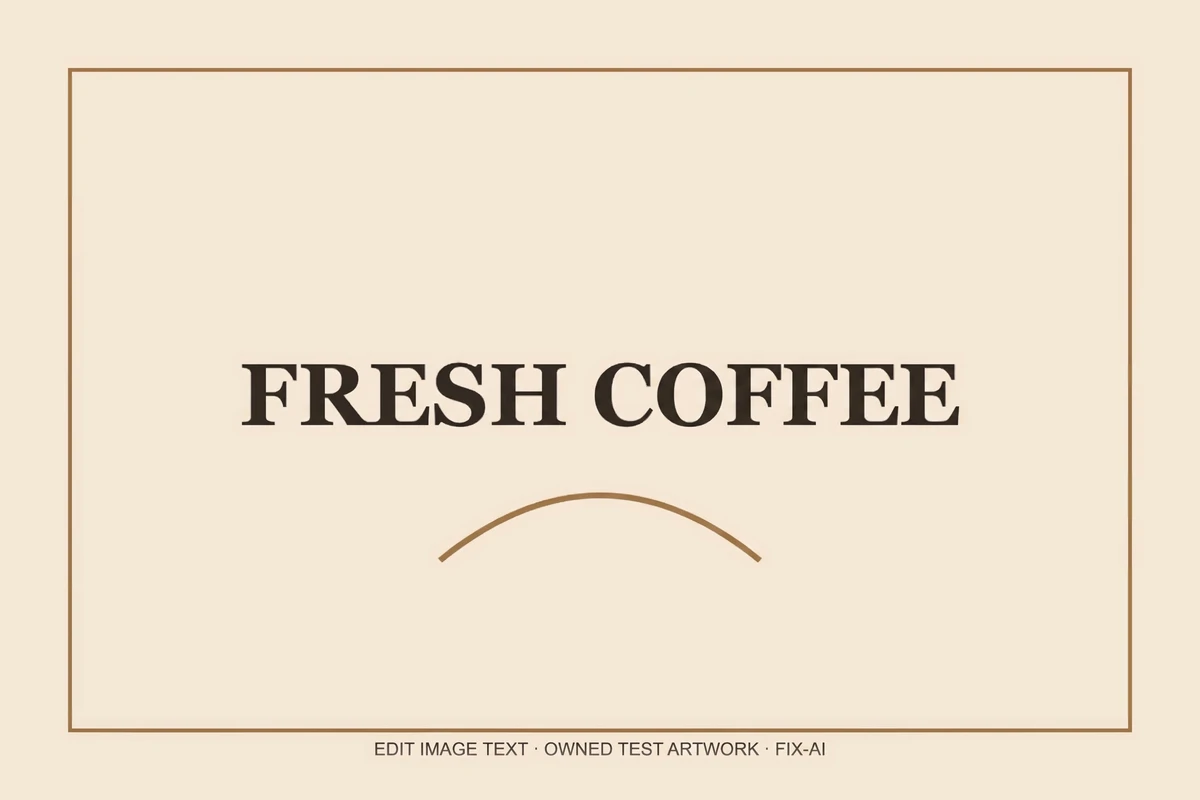
A malformed headline and an unwanted promotional word require different instructions. Fix AI mode supplies a known replacement. Remove mode asks the model to reconstruct the surface behind the selected phrase without rendering another phrase in its place.
The images in this guide are inherited from the backend example set. They illustrate editing and review steps; they are not EditText customer submissions or production measurements.
Both modes use the same task, storage and credit flow as a normal replacement. They differ in what the server asks the image model to do. Neither mode automatically recognizes all text or validates the complete image.
Fix AI: correct a known error
The illustrative artwork uses FRESH C0FFEE, with a zero where the letter O is intended. The old phrase and the explicit correction FRESH COFFEE show how to specify the change. Check the intended phrase in the edited version.
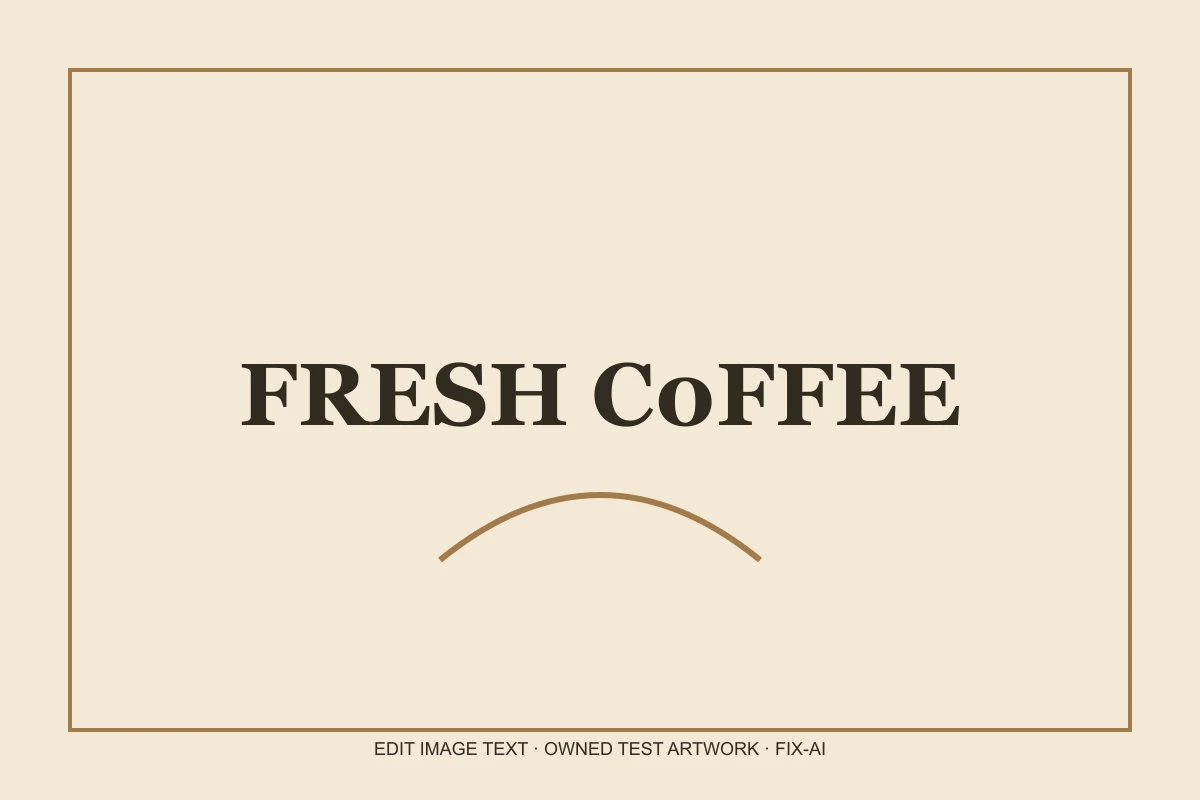
Inherited example artwork, before and after. These images illustrate the editing task; they are not measurements of EditText production. The zero was replaced with O in the requested word. Other text is not automatically proofread.
The mode does not decide that a zero is wrong in every context. You supply the intended wording. If the original lettering is unreadable, the model may not locate it reliably. Include enough of a phrase to make the target clear and avoid changing several unrelated lines in one request.
After generation, check every letter in the replacement and every other line in the design. A new model pass can introduce another error. A returned file is evidence that processing completed, not evidence that the correction is right.
Browse the homepage editing examples, then correct a known error in your AI image.
Remove: the word is gone, but the fill is imperfect
The removal illustration pairs SALE with an empty replacement. The edited version has no letters in that area, but a faint rectangular tone difference remains in the cleared label area.
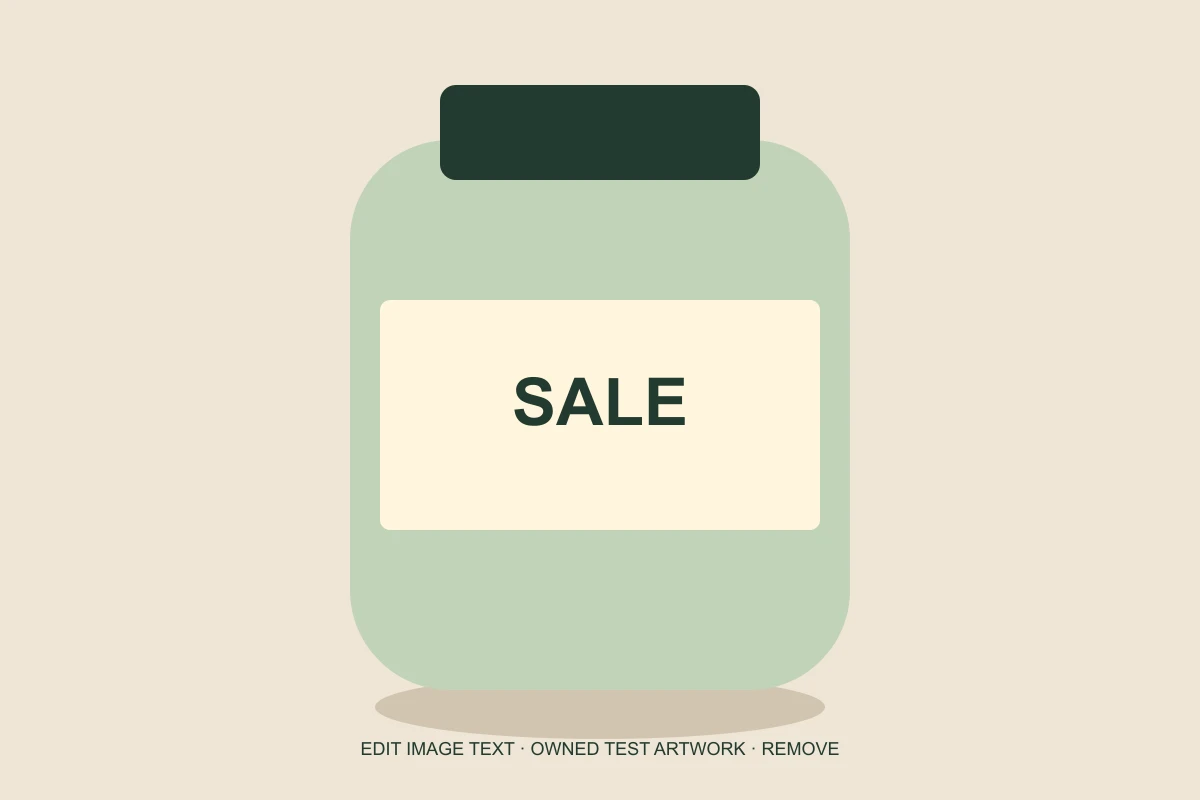
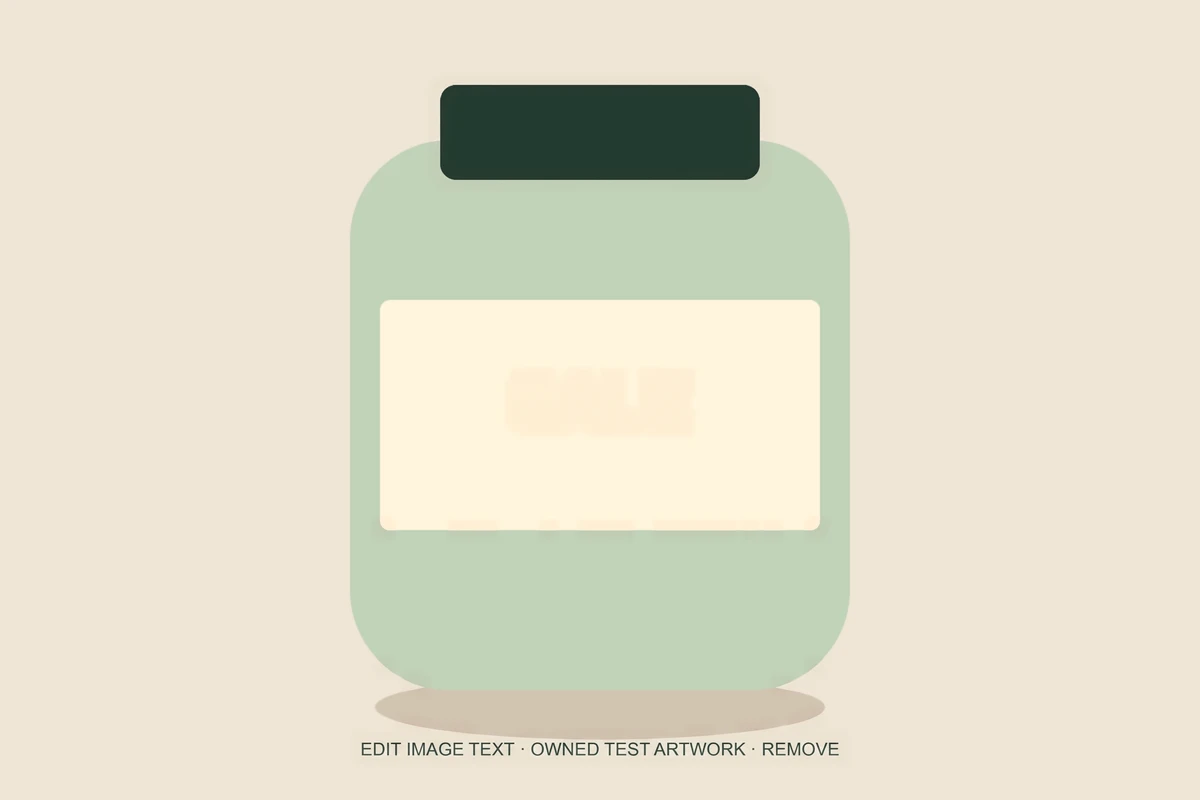
Inherited example artwork, before and after. These images illustrate the editing task; they are not measurements of EditText production. The word is gone, but a faint tone patch remains where it was removed. This result needs further design review.
This illustrates a useful distinction: a generated file can have no visible target text and still need further design work. Inspect the surface before treating a cleanup as finished.
Text covers pixels. Those hidden pixels cannot be recovered from a flattened image, so a generative removal tool estimates the background. A plain surface can retain a faint patch; a textured surface can acquire a seam or invented detail.
Review the illustration above before trying to remove a phrase from your own image.
Removal is not privacy redaction
If the goal is to hide private information, use the local black-box tool rather than a generative cleanup. A creative background fill is not a promise that sensitive content has been irreversibly removed from every copy or metadata field.
You must own the image or have permission to edit it. Removing ownership marks, licensing information or attribution without permission is outside the intended use of this workflow.
How to judge the result
First check the requested word: does the corrected phrase read exactly as intended, or is the removed phrase actually absent? Then inspect the surrounding surface at full size. Look for a different shade, a halo, repeated texture or a nearby edge that no longer aligns.
The browser’s changed-area estimate helps locate differences, but it does not know what a correct word or an acceptable fill should look like. A small changed area can still contain a noticeable patch.
Finally, inspect the image at its intended display size and keep the original. A design asset that is acceptable for a small internal draft may be unsuitable for a printed label or a brand-critical campaign.
Use Fix AI text for an explicit correction and Remove text for background reconstruction. The editing guide explains how to review a generated file; the homepage examples illustrate common editing tasks.